
How Clippr Works
Clippr is not magic dust on a timeline. It is a practical pipeline: choose a source, let Fractal analyze it, generate candidate Shorts, review the output, and schedule the winners.
The Clippr Flow In Plain English
Ingest the source
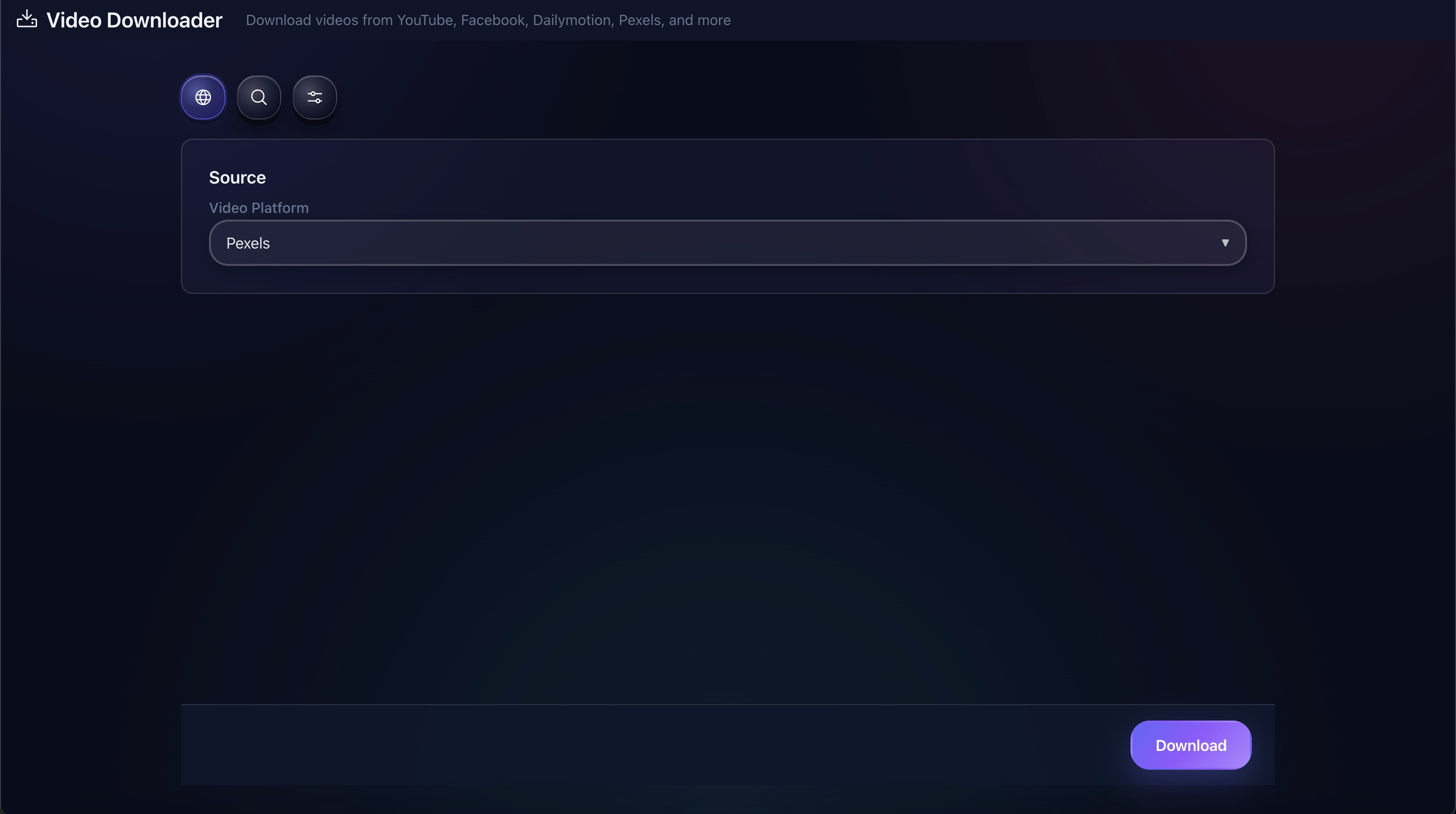
Use a local video file, a video URL, or a recent upload from a connected channel. URL mode uses Fractal's downloader to create a source file for the run.
Probe and transcribe
Clippr checks duration, dimensions, audio, and format. For YouTube sources it tries transcript lookup first; for other files it can use AI transcription when available.
Plan timestamps
AI looks for complete short-form moments: a reveal, objection, example, punchline, or useful explanation. If AI planning is unavailable, Clippr still builds a local timing plan.
Render vertical clips
Each selected range is rendered as a 9:16 MP4 with smart reframing, hook overlay text, and optional auto polish.
Review and publish
The generated cards let you preview files, reveal them, adjust hooks or polish, upload immediately, or schedule selected clips.
The Controls That Shape Each Run
Clip count
Choose between 1 and 12 clips, depending on whether you want a small batch or a larger review pile.
Length range
Set minimum and maximum seconds so clips stay short enough for Shorts but long enough to complete the thought.
Style
Use modes like viral shorts, educational hooks, podcast highlights, gaming highlights, or founder story to steer the clip plan.
Vertical framing
Smart mode chooses a vertical strategy automatically, while fit-with-blur and center-crop modes give you more direct control.
Auto polish
Optional color and zoom polish can add a little motion and contrast without opening a separate editor.
Upload privacy
Set a default upload privacy level, or schedule clips privately when using publish times.
Why Clippr Still Keeps You In The Loop
Auto-clipping is most useful when it gets you to review faster. It should not remove your judgment, your rights checks, or your final publishing decision.
Check the moment
Watch the generated clip and make sure the timestamp contains a complete idea before it goes out.
Check the packaging
Clippr prepares titles, hooks, and descriptions, but you should still adjust them for your channel voice.
Check the rights
Only process and republish media you own, licensed, or have permission to use.