Video Creator
Video Creator is Fractal's actual production workspace for script-led editing, AI-assisted scene generation, sourced assets, captions, audio, review tools, and export. It is where Create With AI projects open for refinement, but it also works as a manual timeline tool on its own.
Best fit for creators who want a real production workspace with script, timeline, AI scenes, sourced media, review tools, and export in one place.
Why Creators Open Video Creator
This is not just a viewer for AI drafts. It is the place where scripts, layers, sourced media, generated scenes, and review flows actually come together.
One workspace for the full build
Scripts, timeline assets, text, captions, voiceover, BGM, scenes, and export all live in the same editor.
Works with or without Create With AI
Start blank, reopen a saved project, or let Create With AI build the draft and then refine it here.
Built for review, not just generation
Review Edit, Review Thumbnails, metadata, hotkeys, and inspector controls make it a real production surface instead of a one-shot generator.
How The Real Workspace Usually Works
Open a project
Start from Home, Projects, or automatically after a Create With AI run completes.
Add the story
Write in the script panel, import saved scripts, record voice, paste YouTube links, or use AI helpers to create the script.
Build the timeline
Add videos, images, text, captions, webpages, compositions, audio, scenes, and library assets until the structure is in place.
Review and refine
Use the inspector, review edit, metadata, and thumbnail review surfaces to tighten the project before export.
Save and export
Use the file menu to save the JSON project, preview fullscreen, and export the final MP4.
What The Actual Editor Contains
Script panel on the left
The script area includes AI generation, voice recording, YouTube link input, and AI settings so the story can be created or edited without leaving the workspace.
Canvas and playbar in the center
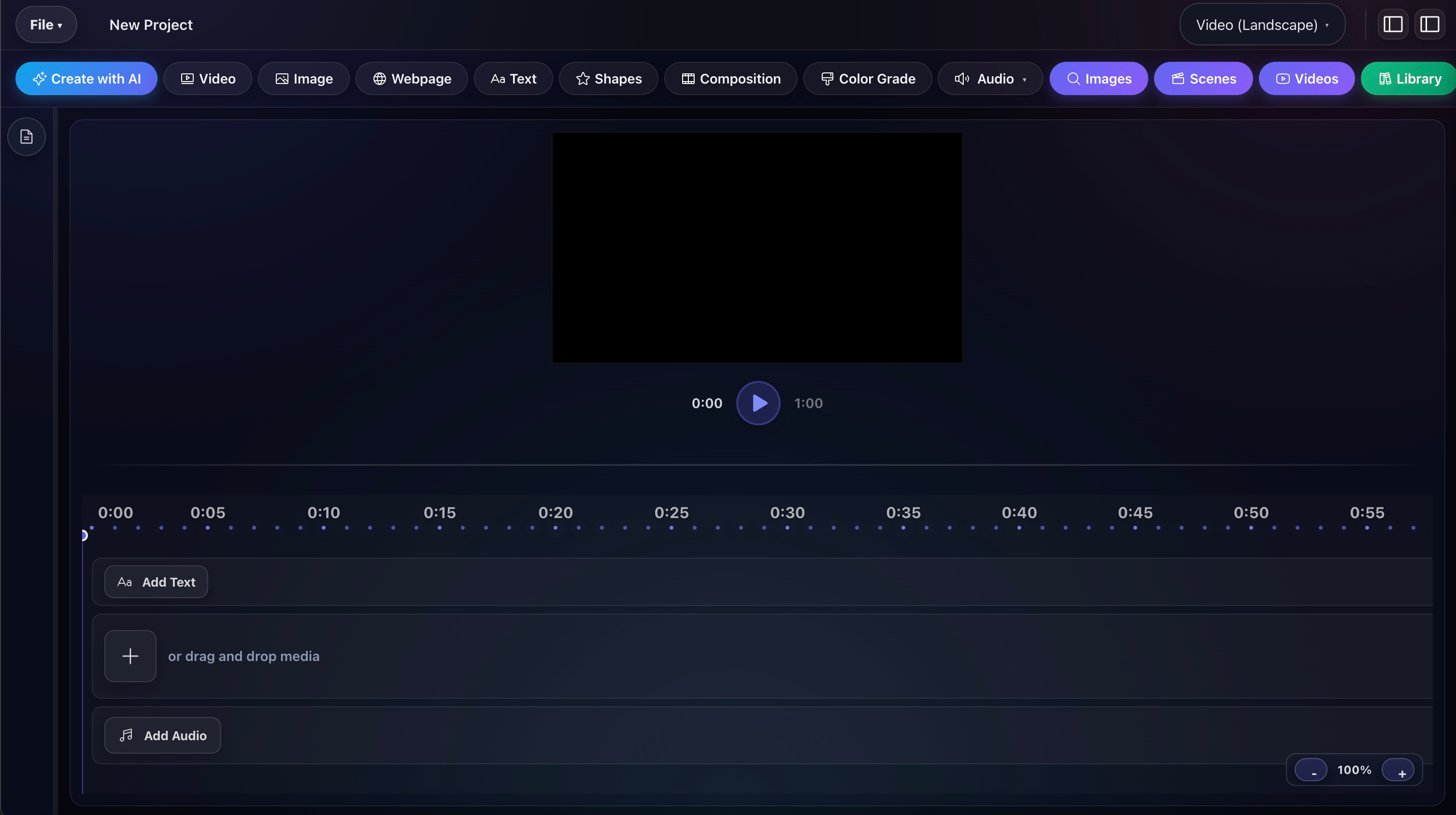
The preview stage supports layout and playback, with landscape, portrait, and square output options plus a real timeline playbar.
Timeline assets below the preview
All layers show up as timeline items instead of a single flattened sequence, so you can build a multi-layer project.
Inspector on the right
Edit start time, duration, volume, opacity, text, and other properties from the inspector after selecting any asset.
What The Top-Level Menu Actually Does
Project actions
The real menu includes New Project, Open Project, Save Project, Preview, Save Script, and Exit Video Creator.
Production actions
It also includes Create With AI, Export, View Metadata, Review Edit, Review Thumbnails, Hotkeys, and Settings.
More than a simple exporter
Those menu items show the workspace is designed for iteration, QA, and project management, not just final render output.
What You Can Add Without Leaving The Editor
Manual assets
Add video, image, webpage, text, shapes, composition, color grade, and captions directly from the toolbar.
Audio dropdown
The toolbar exposes Voiceover, Background Music, and Sound Effect as separate audio actions instead of one generic audio slot.
Sourced media
Open built-in Images, Videos, and Library flows to pull in assets without breaking the workspace.
Create With AI and Scenes
Launch full AI draft generation or open the scenes studio from the same toolbar, depending on whether you need a whole draft or just a new shot.
The Actual Step Flow In The Tool
The shipped modal inside Video Creator is explicitly organized as `Story`, `Voice`, then `Skills`, and Diamond presets now keep their Step 3 skills editable instead of hard-locking the visual mode.
Story step
Start from a saved story, paste your own story, generate from research documents, generate from timeline audio, generate from your own local files, or generate from a popular niche.
Voice step
Choose narration behavior and pacing so the project's runtime and spoken structure are locked before later editing behaviors are applied.
Skills step
Apply the sourcing, caption, music, image, video, and polish behaviors that shape how the draft is actually built. For Diamond-only presets, this is also where you can now mix AI Video, A-Roll, B-Roll, sourced footage, and motion graphics inside one run.
Step 3 Can Now Mix Visual Modes
Editable AI Video default
Diamond presets still start on AI Video so their generative look stays intact, but the preset is now editable instead of locked.
A-Roll plus sourced footage
Switch to A-Roll, keep video sourcing on, and the resulting script can stay mostly presenter-led while cutting to sourced B-Roll when it needs proof, examples, or scene context.
A-Roll plus motion graphics
Turn on motion graphics so key explanations, chapter moments, or comparisons break into designed visual beats without giving up the talking-head structure.
Diamond-only access
Free and Pro Create With AI drafts use sourced/local media. Diamond-only presets and their mix-and-match generative visual routing stay reserved for Diamond members.
Story Sources The Real Modal Supports
Saved story or pasted story
Use existing script material from the app or paste a custom story directly into the modal.
Research documents
Add files, YouTube links, and websites so the generated story uses those references instead of a generic prompt alone.
Timeline audio
Generate the story from audio already in the project when the spoken material should drive the structure.
Local clip editor path
The local-files route includes tabs for Videos, Voiceover, BGM, SFX, Instructions, and Script so the build can be driven by your own uploaded assets only.
AI Image And Video Generation Is A Full Studio, Not One Button
Generation controls
The real modal supports image on or off, 16:9 or 9:16 output, separate image and video model selectors, and reference guidance text.
Style and character references
Upload up to 6 style references and up to 3 character images so scenes can stay visually consistent across a project.
Insert and regenerate actions
Generate image plus video, regenerate image plus video, regenerate video only, then insert the image or video result into the project.
Built-In Sourcing Surfaces
Find Videos providers
The actual finder supports YouTube, Facebook, Dailymotion, Pexels, and Yarn.co, with direct search and add flows.
Multiple URL downloads
The tool includes a batch URL flow for downloading multiple links one at a time instead of forcing one-by-one sourcing.
Library import
The import library modal exposes Images, Videos, Audio, BGV, BGM, Sound Effects, Stock/Source, and Vignettes & Textures.
Filter and search
Library import supports downloaded vs not-downloaded filtering, category filtering, keyword search, and direct import into the active project.
The Workspace Has Real QA Surfaces
Review Edit
Step through AI-generated scenes to approve, replace, or regenerate clips without rerunning the whole project.
Review Thumbnails
Open the thumbnail review surface from the same workspace when the project has generated packaging concepts alongside the video.
Project metadata
Use the metadata view for project details, script stats, timeline summary, asset lists, and AI-planning context instead of guessing what the project contains.
What Access Includes
Production workspace
Video Creator is the home for Fractal's script, media, audio, timeline, and Create With AI draft-review workflows.
Project-based editing
The actual file menu and UI make this a reusable project workspace, not just a one-shot generation screen.
Connected to the wider stack
Video Creator links directly with Create With AI, scripts, voiceover, library assets, sourced media, scenes, captions, thumbnails, and export.
What To Read Next
Create With AI
See the guided draft-building workflow that opens directly into Video Creator for refinement.
Open pageAI Voice & Audio
Go deeper on voiceover, BGM, SFX, and narration since those controls are built directly into this editor.
Open pageThumbnail Creator
See the packaging side if you want video shufflrion workspace and thumbnail workflow to stay connected.
Open pageMain docs
Read the full docs walkthrough for layout, menu actions, scenes, library import, presets, and review tools.
Open docsNeed The Full Video Creator Breakdown?
Read the docs if you want the complete workflow details, or go to pricing if you already know this is the workspace you need.