How AI Video Editing Works
For most YouTubers, AI editing is useful when it removes the boring parts: finding usable cuts, shaping a first draft, and helping you review faster.
Want the overview first? Start with the AI video editing guide.
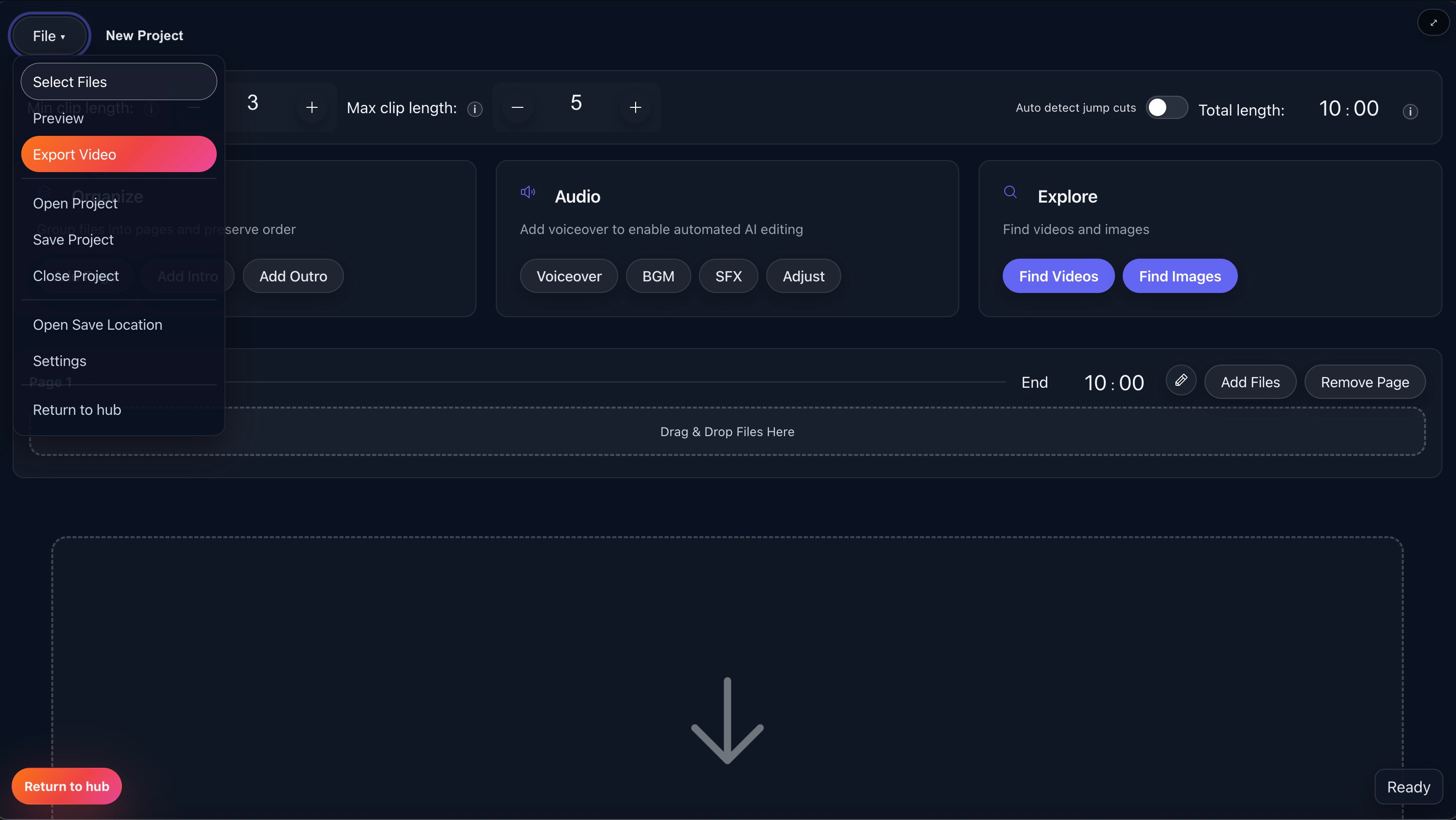
What this page covers
Find cut points faster
Let the app detect usable sections so you are not trimming every clip by hand.
Reuse your editing rules
Set clip length, pacing, and order once instead of redoing the same choices every time.
Get to review sooner
Use AI to make a draft, then spend your time fixing what matters.
A simple way to start
Bring in footage
Add your clips, images, or both.
Choose the edit rules
Set clip length, order, and target runtime.
Review the draft
Swap or trim anything that feels off before export.
Export for the format you need
Render for YouTube, Shorts, or square posts.
If you do not have footage yet, Create with AI can help you build a starting draft with sourced clips, local media, optional saved-key voiceover, and captions.
What creators tend to use
Not every workflow needs all of this, but these are the parts most YouTubers usually care about.
Smart Clip Logic
Set minimums, maximums, and total length so the draft stays usable.
Pages & Merge
Keep your intro, middle, and outro in order without rebuilding each sequence by hand.
Review & Trim
Check the draft, swap weak clips, and tighten shots before export.
Subtitles
Generate captions, clean them up, and style them for your format.
Audio Stack
Handle voiceover, music, ducking, and basic cleanup in one place.
Create with AI
Build editable drafts from ideas, scripts, and sourced media. AI image/video generation is Diamond-only.
Source Media
Pull in extra clips and images without bouncing between tools.
Advanced Editor
Use the deeper editor when the automatic draft needs extra work.
Thumbnails
Make and iterate on thumbnail ideas without leaving the app.
Research
Use script, prompt, and research tools when you are planning the video.
Channel Planning
Track niches, related channels, and topic ideas for future uploads.
Export
Render the formats you need without rebuilding the whole project.
What creators usually ask
Want to try this on a real video?
Download Fractal and see whether the workflow fits how you already make YouTube videos.